

Everyday Tech

Before You Buy a Used or Refurbished Computer, Check These Things

Share
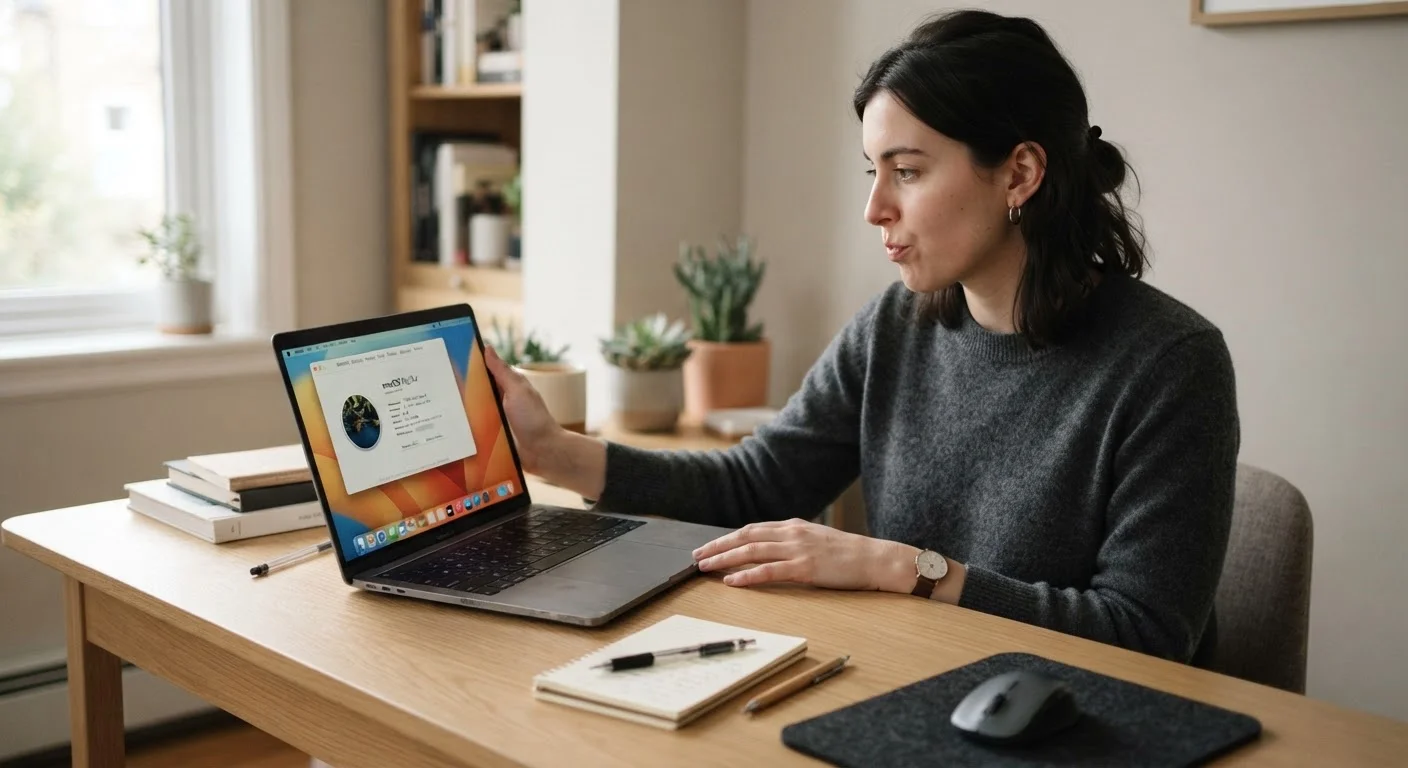
Person examining a used laptop computer at a desk in natural daylight before purchasing.

Key Takeaways

Refurbished computers certified by manufacturers carry more reliability assurance than private-seller listings.
Checking the battery health, RAM, and storage type before buying can prevent expensive surprises.
A computer that can't run current operating system updates is a security risk, regardless of price.
Always test the machine in person or confirm a return window before completing the purchase.
Hidden costs like missing chargers or software licenses can quickly erode any upfront savings.
30–60 min

Summary

22 items · 30–60 minutes

Why This Checklist Matters

Buying a used or refurbished computer can stretch your budget considerably — but only if you know what to look for. Unlike a new machine with a manufacturer warranty and a clean slate, a secondhand PC comes with an unknown history. Components wear out, software can be compromised, and sellers don't always disclose problems they haven't noticed themselves.

This checklist walks you through the key checks to perform before handing over any money — whether you're browsing an online marketplace, visiting a local shop, or considering a certified refurbished program. If you're still weighing whether used is right for you at all, the same logic that applies to comparing new vs. used in other purchases is worth keeping in mind: upfront price is rarely the whole story.

For a broader understanding of what specs to prioritize in the first place, see our complete walkthrough for first-time computer buyers.

Required

USB Flash Drive

Lets you test USB ports on the spot and can carry a portable diagnostic tool to run during an in-person inspection.

Required

CrystalDiskInfo (Windows)

A free utility that reads the health status and usage hours of a storage drive, helping you spot a failing disk before you buy.

Required

Windows Battery Report

A built-in Windows command-line report that shows battery capacity versus its original design capacity, revealing wear level.

Optional

Smartphone or Tablet

Use it to look up the model's specifications online during inspection, so you can verify what the seller claims against published data.

Optional

Notepad and Pen

Record model numbers, serial numbers, and any defects you observe during inspection for reference after you leave.

The Full Pre-Purchase Checklist

Work through these groups systematically. If you're buying in person, bring a USB drive and run through as many tests as you can on the spot. If buying online, confirm the seller's return policy before purchasing — ideally in writing.

Source and Seller Verification

Confirm whether the computer is "refurbished" (inspected and restored) or simply "used" — the two terms carry very different reliability implications. Must
Check if a manufacturer-certified or retailer-certified refurbishment program backs the unit, as these typically include some warranty coverage. Must
Review the seller's return policy and confirm you have at least 7–14 days to return the item if a problem emerges after purchase. Must
Ask for the original purchase receipt or proof of ownership to avoid buying stolen equipment. Should

Physical Condition

Inspect the chassis, screen, and keyboard for cracks, dents, or liquid damage marks — especially around the vents and bottom panel. Must
Open and close the lid (on laptops) several times to verify the hinge is secure and doesn't wobble or creak excessively. Must
Press every key on the keyboard and test the trackpad to confirm all inputs register correctly. Must
Check all ports (USB, headphone jack, SD card slot, charging port) by physically inserting a device or cable. Should

Core Specs and Performance

Verify the processor generation and speed match what was advertised — open System Information (Windows) or About This Mac to confirm. Must
Confirm the RAM (memory) amount and note whether it is soldered or upgradeable, since soldered RAM cannot be expanded later. Must
Identify the storage type: a solid-state drive (SSD) is significantly faster and more reliable than an older spinning hard drive (HDD). Must
Run a free disk health tool (such as CrystalDiskInfo on Windows) to check the storage drive's health status and hours of use. Should

Battery and Power

Check the battery health percentage — on Windows, run a battery report via Command Prompt; on a Mac, hold Option and click the battery icon. Must
Confirm the original charger is included, or factor the cost of a replacement charger into your overall budget. Should
Plug in the machine and verify it charges correctly — watch for any sparking, overheating near the port, or failure to register a charge. Must

Software and Security

Confirm the operating system version is current enough to receive ongoing security updates from the developer. Must
Check that the device is not locked to a previous owner's account (Apple ID Activation Lock, Microsoft account, or Google account on Chromebooks). Must
Ask whether any paid software licenses are included and transferable — many software subscriptions are tied to the original buyer's account. Should
Plan to perform a clean operating system reinstall after purchase to remove any unknown software or lingering malware. Should

Final Sanity Checks

Connect the machine to Wi-Fi and verify the wireless adapter works reliably during a brief browsing test. Must
Play a short video with sound to confirm both speakers and the display produce output without distortion or dead pixels. Should
Calculate your all-in cost including any missing accessories, software, or repairs — and compare it honestly to the cost of a new entry-level machine. Nice to have

Account Lock Can Make a Device Unusable

If a laptop or desktop is still linked to the previous owner's Apple ID, Microsoft account, or Google account, you may not be able to use the device at all after purchase. This is a security feature, not a glitch — and it cannot be bypassed legitimately. Always verify the previous owner has signed out and removed their account before completing any transaction.

After the Purchase: Your Next Steps

Once you've confirmed the machine meets your standards and completed the purchase, the work isn't quite done. A used computer should be treated like a fresh start: wipe the drive and perform a clean operating system installation whenever possible. This removes any unknown software, malware, or leftover personal data from the previous owner.

From there, our guide on setting up a computer for a non-tech person covers accounts, updates, and backups in plain language. And if this purchase is replacing an old machine, don't overlook what to do with your old computer's files and accounts — migrating data responsibly takes a bit of planning but saves a lot of frustration.

A used computer bought carefully can serve you reliably for years. The time you invest in this checklist now is far less painful than discovering a hardware problem after the return window has closed.

Everyday Tech Editorial Team is the collective byline for our editorial team and contributor network. Articles published under this byline or an editorial pen name are researched, written, and reviewed according to our editorial standards for clarity, consistency, and independence before publication.

View all articles by Everyday Tech Editorial Team →
Disclaimer: The content provided on our blog site traverses numerous categories, offering readers valuable and practical information. Readers can use the editorial team’s research and data to gain more insights into their topics of interest. However, they are requested not to treat the articles as conclusive. The website team cannot be held responsible for differences in data or inaccuracies found across other platforms. Please also note that the site might also miss out on various schemes and offers available that the readers may find more beneficial than the ones we cover.