

Key Takeaways
Quick glances without unlocking your phone
Always-on display lets you check the time, see notification icons, or confirm a reminder without picking up your device. This is especially useful when your hands are occupied or your phone is resting on a surface nearby.
Faster response to time-sensitive alerts
For people in on-call roles or those coordinating with family, seeing an incoming call or urgent message at a glance can mean responding seconds faster — which sometimes matters.
Reduced phone pick-up frequency
Ironically, having key info visible on a dim screen can reduce how often you fully unlock and scroll your phone, which can limit time spent in apps unnecessarily.
OLED efficiency makes AOD more viable than ever
Modern OLED panels light individual pixels rather than the whole screen, making always-on display less power-hungry than it was on older LCD technology.
Measurable battery drain over a full day
Even an efficient always-on display adds to daily power consumption. On a device already running close to its limit, AOD can be the difference between making it through the evening and needing a midday charge.
Constant interruptions fragment deep focus
Every notification that catches your eye — even one you don't act on — pulls attention away from the task at hand. Cognitive scientists refer to this as attention residue, where part of your focus lingers on the interruption even after you've returned to work.
Nighttime light exposure disrupts sleep
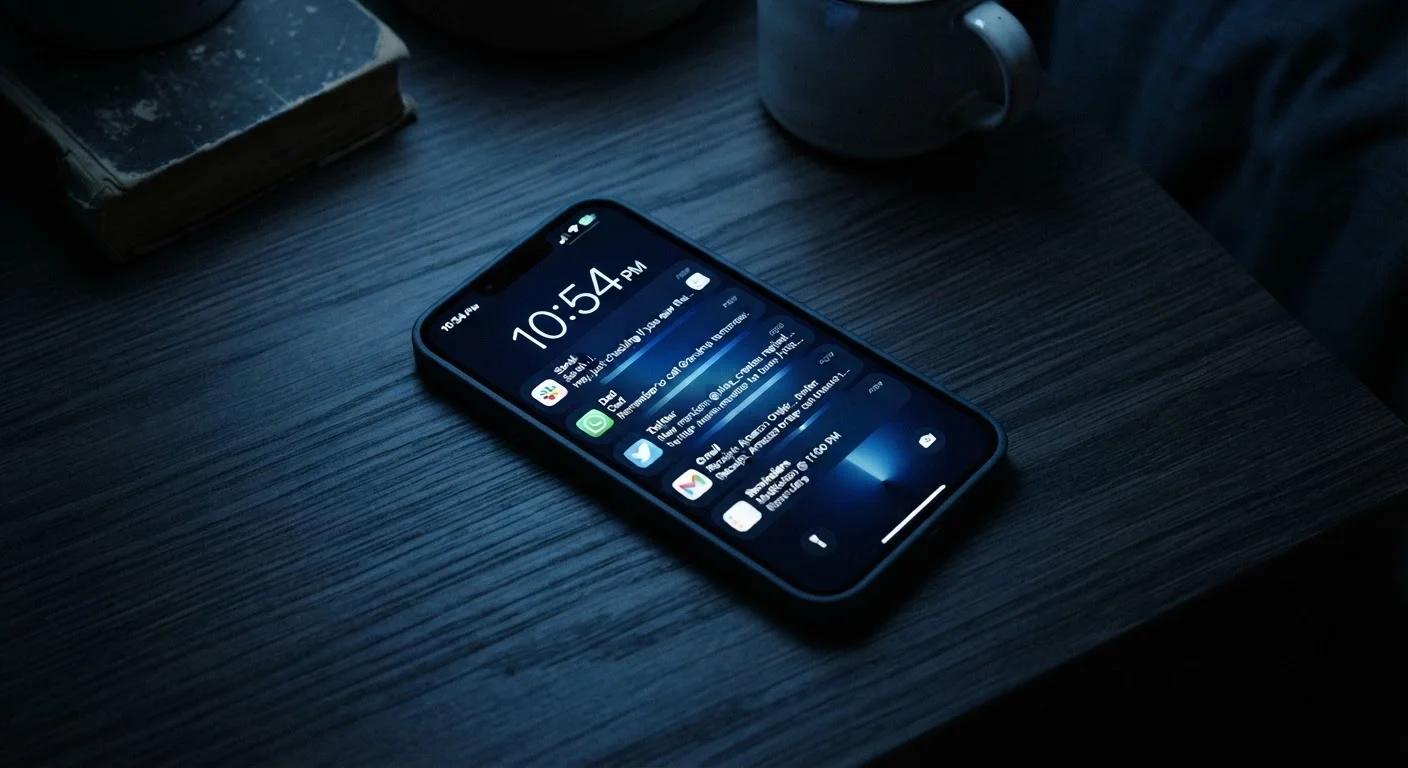
An always-on screen on your nightstand emits light even at low brightness. For light sleepers, this ambient glow and incoming notification flashes can disrupt sleep quality over time.
Notification overload creates decision fatigue
When every app is allowed to notify you freely, the sheer volume of low-priority alerts trains you to respond reflexively rather than intentionally — a pattern that's hard to break once established.
False urgency becomes the default mode
When your screen is always showing something new, it becomes easy to mistake activity for priority. Many users report feeling like they need to respond immediately to messages that don't actually require it.
Our Verdict
Always-on screens and constant notifications offer genuine convenience, especially for people who need quick glances at time, alerts, or messages without unlocking their phone. However, these features extract a real toll — on battery life, on sleep quality, and on your ability to focus. For most users, a middle-ground approach works best: selective notification management paired with scheduled screen-on times rather than leaving everything running at full tilt around the clock.
Users who frequently check their phone for time or alerts in hands-free situations will get the most value from always-on display, while those who prioritize battery life or focused work will benefit most from dialing these features back.
What 'Always-On' Actually Means
The term always-on display (often abbreviated AOD) refers to a screen mode that keeps a dim, low-power version of your display active even when your phone is locked. Typically it shows the time, date, notification icons, and sometimes a clock style you choose. On most modern devices using OLED or AMOLED panels, AOD is designed to consume relatively little power by lighting only the pixels it needs.
Notifications, on the other hand, are the constant stream of pings, banners, and badges from every app you've installed. These two features often work together — your always-on screen quietly displays incoming alerts so you never truly disconnect. That's by design. But it's worth understanding what you're trading away to stay that connected. For a broader look at what your phone is quietly doing in the background, see what your smartphone can already do.
The Real Advantages of Staying Connected
There are legitimate reasons these features became popular in the first place. A glance at your always-on screen in a meeting, while cooking, or while your phone is charging across the room can save you from constantly picking up and unlocking your device.
Quick glances without unlocking your phone
Always-on display lets you check the time, see notification icons, or confirm a reminder without picking up your device. This is especially useful when your hands are occupied or your phone is resting on a surface nearby.
Faster response to time-sensitive alerts
For people in on-call roles or those coordinating with family, seeing an incoming call or urgent message at a glance can mean responding seconds faster — which sometimes matters.
Reduced phone pick-up frequency
Ironically, having key info visible on a dim screen can reduce how often you fully unlock and scroll your phone, which can limit time spent in apps unnecessarily.
OLED efficiency makes AOD more viable than ever
Modern OLED panels light individual pixels rather than the whole screen, making always-on display less power-hungry than it was on older LCD technology.
For people who manage time-sensitive responsibilities — caregiving, on-call work, or coordinating with family — the ability to see an incoming call or urgent message without touching the phone is a genuine quality-of-life improvement. Similarly, battery-conscious notification delivery on modern phones has improved, meaning the raw energy cost of a well-configured system is lower than it used to be.
The Hidden Costs You Probably Haven't Tallied
Convenience rarely comes free. Always-on features extract costs in three main areas: battery life, mental focus, and sleep quality.
Measurable battery drain over a full day
Even an efficient always-on display adds to daily power consumption. On a device already running close to its limit, AOD can be the difference between making it through the evening and needing a midday charge.
Constant interruptions fragment deep focus
Every notification that catches your eye — even one you don't act on — pulls attention away from the task at hand. Cognitive scientists refer to this as attention residue, where part of your focus lingers on the interruption even after you've returned to work.
Nighttime light exposure disrupts sleep
An always-on screen on your nightstand emits light even at low brightness. For light sleepers, this ambient glow and incoming notification flashes can disrupt sleep quality over time.
Notification overload creates decision fatigue
When every app is allowed to notify you freely, the sheer volume of low-priority alerts trains you to respond reflexively rather than intentionally — a pattern that's hard to break once established.
False urgency becomes the default mode
When your screen is always showing something new, it becomes easy to mistake activity for priority. Many users report feeling like they need to respond immediately to messages that don't actually require it.
Even efficient OLED always-on displays add measurable drain. How much depends on screen size, brightness, and what's being displayed, but it's a factor worth understanding — especially if your battery already struggles through a full day. Our article on why your phone battery drains faster than it should covers the full picture of background power use.
The attention cost is less visible but arguably more significant. Research into interruption science consistently finds that even a brief notification glance — a banner, a buzz — can disrupt a focused task for longer than the interruption itself lasts. Over a workday, dozens of those moments accumulate into lost time and increased cognitive fatigue. And if your always-on screen lights up on your nightstand, it can interfere with sleep even if you never consciously look at it.
23 min
Average refocus time after a digital interruption
Research from the University of California, Irvine found it takes an average of about 23 minutes to fully return to a task after an interruption.
96×
Average daily phone checks by US adults
Studies on smartphone behavior suggest many American adults check their phones dozens of times per day, with notifications being a primary trigger.
Settings Worth Changing Right Now
The good news is that both Android and iOS give you meaningful control over these features, and most of the changes take under two minutes. Here's where to look:
- Always-on display toggle: Found under Display settings on most Android phones. On iPhones with AOD support, it's under Settings > Display & Brightness.
- Scheduled AOD: Some devices let you activate always-on only during certain hours — a smart middle ground if you find it useful at your desk but disruptive at night.
- Per-app notification control: Rather than silencing everything, go through your apps one by one and decide which truly need to interrupt you in real time. Most don't.
- Focus modes: Both major platforms offer built-in Focus or Do Not Disturb modes that filter notifications by context — work hours, sleep, driving. These can be scheduled to activate automatically.
For a side-by-side look at how Android and iOS handle notification control differently, Android and iOS differ in meaningful ways that may influence which approach works better for you.
A Note on OLED vs. LCD and Battery Impact
Always-on display is most practical on phones with OLED or AMOLED screens, where only active pixels consume power. On LCD screens, the entire backlight stays on, making AOD significantly more battery-intensive. If your phone uses an LCD panel and offers an AOD option, the battery cost is higher than it might appear in marketing materials. Check your phone's display type in the specifications before enabling AOD expecting minimal drain.
Making the Right Call for Your Routine
There's no universally correct answer to whether you should keep always-on display active or trim your notifications aggressively. It depends on how you use your phone and what you find yourself losing — battery or attention — more often.
A useful starting point: spend one week with AOD and all notifications enabled, and note how often you actually act on what you see versus simply feeling distracted by it. Then try a week with selective notifications and AOD off or scheduled. Most people discover they were responding to far fewer alerts than they thought — and feeling calmer without the rest. The same logic applies to other convenience features that quietly accumulate costs, a pattern explored in the hidden costs of everyday convenience.
If you're evaluating a new device and wondering whether its always-on features fit your lifestyle, run through this checklist before buying any smart device to avoid surprises after purchase.