

Key Takeaways
Why So Many Features Go Untouched
The average smartphone ships with hundreds of built-in features. Most people use a small fraction of them — calling, texting, social media, and a handful of apps. That's not a failure of curiosity; it's a predictable result of how phones are designed. Manufacturers bury powerful tools inside nested settings menus where they're easy to miss.
This guide surfaces what's already on your phone. No new apps to download, no subscriptions required. Whether you use iOS or Android, the categories below will apply — though the exact menu names vary by operating system and version. For a deeper look at how those two platforms compare day-to-day, see how Android and iOS differ in daily use.
Accessibility Tools Built for Everyone
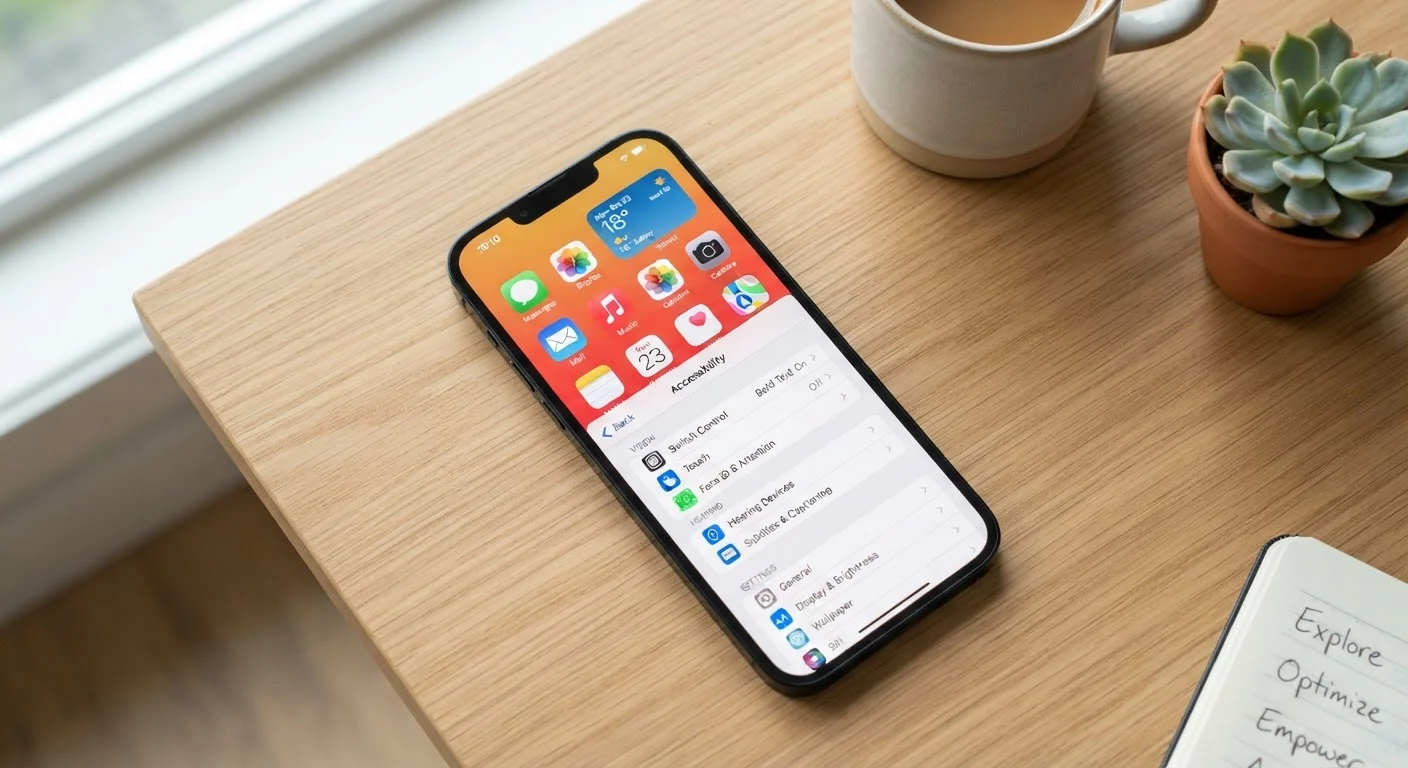
The Accessibility section of your phone's settings was originally designed to support people with vision, hearing, or motor differences. In practice, many of these tools improve the experience for just about anyone.
- Display and text size controls — Increase font size or enable bold text across every app at once, without changing individual app settings.
- Reduce Motion — Tones down animated transitions, which can reduce visual fatigue during long use.
- Live Captions (Android) / Live Listen (iOS) — Your phone can transcribe spoken audio in real time, or relay microphone audio directly to compatible hearing devices.
- Touch accommodations — Adjust tap sensitivity, enable tap-and-hold delays, or set up AssistiveTouch to replace physical button presses.
- Switch Control and Voice Access — Control your phone entirely by voice or external switch, useful if your hands are occupied or injured.
Explore the Accessibility menu even if you don't think it applies to you. Many users discover quality-of-life improvements they didn't know they were missing.
Before downloading any new productivity or accessibility app, search for the same feature in your phone's built-in Settings. You'll be surprised how often it's already there.
Manufacturers have added robust native tools precisely to reduce dependence on third-party apps, which often come with ads or subscription fees.
Set up at least one Focus mode this week — even a simple 'Sleep' mode that silences everything overnight. Most users who try it report better sleep and less morning anxiety.
Studies on notification interruption consistently link evening phone alerts to disrupted sleep patterns; a scheduled Focus mode is the simplest friction-free fix.
Focus Modes and Notification Control
Constant notifications are one of the most common complaints smartphone users have — and most phones already include robust tools to address this. Both iOS (Focus) and Android (Modes and Routines or Do Not Disturb) let you create custom states that filter who and what can reach you.
A well-configured Focus mode can allow calls from family while silencing everything else during work hours. A sleep mode can suppress all notifications overnight except an alarm. You can even set location-based triggers — for example, automatically enabling a Work focus when you arrive at the office.
For a deeper look at how notifications affect your daily life, see the hidden costs of always-on notifications.
Shortcuts and Automation You Can Set Up Today
Both major platforms include automation tools that most users never open.
- iOS Shortcuts app — Create multi-step automations triggered by time, location, or app opening. Common examples: turn on Do Not Disturb when you open a navigation app, or send a preset text when you leave home.
- Android Routines (Samsung) / Bixby Routines / Tasker integration — Similar automation logic built into many Android devices, often without needing a third-party app.
- Back Tap (iOS) — Double or triple tapping the back of your iPhone can trigger a shortcut, screenshot, or any custom action.
- Scheduled summaries — Rather than receiving notifications in real time, batch them into a digest delivered once or twice a day.
Automation doesn't require programming knowledge. Most built-in tools use visual, tap-through interfaces that anyone can configure in minutes.
Camera and Photo Features Worth Knowing
The camera app on modern smartphones contains capabilities that go well beyond point-and-shoot.
- Document scanning — Both iOS and Android can scan physical documents into PDFs directly from the camera or Notes app, no separate scanner app needed.
- Live Text / Google Lens — Point your camera at printed text to copy it, translate it, or search it instantly.
- Pro or Manual mode — Many phones expose manual controls for shutter speed, ISO, and white balance, giving you more creative control in low light or bright outdoor conditions.
- Night mode — Automatically available in low-light conditions on most modern phones; manually enabling it in dim-but-not-dark situations often produces noticeably better results.
- Video formats — Higher-end devices may offer log or high-dynamic-range video formats that retain more detail for editing later.
Spending 15 minutes exploring your camera app's settings is often more impactful than any camera accessory purchase.
Privacy and Security Controls in Plain Sight
Your phone's privacy settings give you more control over your data than most users realize — without requiring technical expertise.
- Per-app location permissions — Grant location access only while using an app, rather than always. Many apps request persistent access they don't actually need.
- Microphone and camera permission audits — Both iOS and Android show you which apps have accessed your microphone or camera recently. Review this list periodically.
- App tracking transparency (iOS) / Ad ID reset (Android) — You can limit cross-app tracking or reset the advertising identifier tied to your device.
- Network and Bluetooth controls — Disabling Bluetooth and Wi-Fi scanning when not in use reduces background data collection by nearby services.
For a structured walkthrough of these settings, see mobile security settings every smartphone owner should know. And if you're thinking about adding more connected devices to your household, the smart device checklist covers privacy considerations before you buy.
Your phone already contains a remarkable set of tools. The most important step is simply knowing they exist — and taking a few minutes to explore the settings that were already waiting for you.