

Key Takeaways
Why Phone Security Settings Actually Matter
Your smartphone holds more sensitive information than most people realize: banking apps, saved passwords, personal photos, email, and even health data. Yet many phones are left with factory-default security settings that weren't designed with your specific risk in mind. The good news is that modern smartphones — both Android and iOS — include powerful security tools that are already built in. You just need to know where to find them and why they're worth using.
This guide walks through the key settings every smartphone owner should review, explaining what each one does and why it matters in plain language. No technical background required. For a broader look at how Android and iOS handle privacy differently, see how Android and iOS differ in privacy controls.
Core Security Settings to Enable Right Now
These are the foundational settings that protect your device and accounts from the most common threats.
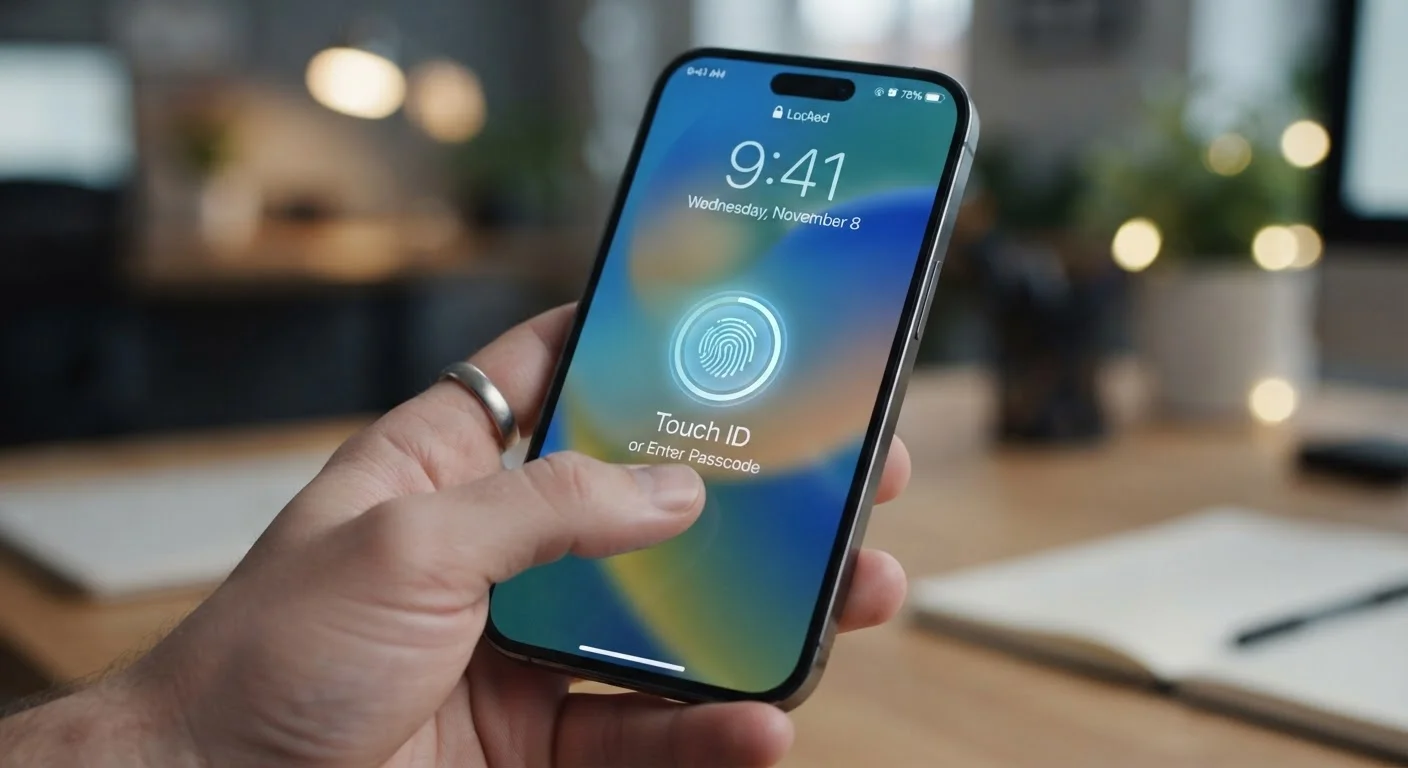
Use a strong screen lock — PIN, password, or biometric — and set it to engage quickly.
A lock screen is the single most effective barrier against someone accessing your phone if it's lost or stolen. A six-digit PIN is meaningfully harder to guess than a four-digit one, and biometrics like fingerprint or face unlock make it convenient to keep the lock active. Setting the auto-lock timer to 30 seconds or one minute ensures the screen doesn't stay open when unattended.
Enable two-factor authentication (2FA) on your key accounts — especially email and banking.
Two-factor authentication requires a second verification step — usually a code sent to your phone — when logging in from a new device. Even if someone obtains your password, they still can't access your account without that second factor. It's one of the most effective protections against account takeover.
Audit and restrict app permissions — especially for location, microphone, and camera.
Many apps request more access than they actually need to function. A flashlight app, for example, has no legitimate reason to access your contacts. Regularly reviewing permissions limits how much data third-party apps can collect and reduces your exposure if any app is compromised.
Turn on automatic operating system updates.
Software updates frequently include patches for security vulnerabilities that have been discovered since your phone's last update. Delaying updates — even by a few weeks — leaves known gaps in your protection open. Enabling automatic updates ensures you're not relying on remembering to check manually.
Set up and verify your phone's lost-device and remote-wipe features.
If your phone is lost or stolen, built-in tools like Find My (iOS) and Find My Device (Android) let you locate it on a map, lock it remotely, or erase all data. These features must be enabled before you need them — you can't set them up after the fact.
Use a password manager and avoid reusing passwords across accounts.
Reusing passwords is one of the most common ways accounts get compromised — when one site is breached, attackers try the same credentials on other services. A password manager generates and stores unique passwords for every account, so you only need to remember one strong master password.
Quick Actions You Can Take Today
Security improvements don't have to be complicated. The actions below take only a few minutes each and address the most frequently exploited weaknesses on everyday smartphones.
For a deeper look at what data your phone and connected devices collect — and how to limit it — visit our guide on smart device privacy and data collection.
Staying Secure Over Time
Security isn't a one-time task — it's an ongoing habit. App permissions can change after updates, new vulnerabilities are discovered regularly, and your own usage patterns evolve. Set a reminder every few months to review which apps have access to your location, microphone, camera, and contacts.
Keeping your operating system up to date is one of the highest-impact habits you can build. Understanding how mobile OS updates work explains why skipping them leaves real gaps in your protection. And if you ever switch phones, be sure your security settings — including two-factor authentication recovery methods — transfer correctly. Our walkthrough on moving everything to a new phone safely covers that process step by step.
Taking an hour to audit your phone's security settings is one of the more impactful things you can do to protect your personal information — without spending a dollar.