

Key Takeaways
Intuitive interaction for casual use
Tapping, scrolling, and pinching to zoom feel natural to anyone used to a smartphone. This lowers the learning curve for less tech-savvy users.
Stylus support enables precise creative work
Many touchscreen laptops support active styluses, making them useful for digital sketching, annotation, and handwritten notes in a way trackpads cannot match.
Doubles as a tablet in convertible models
2-in-1 and convertible designs let you fold the display flat or into tent mode, effectively turning the laptop into a tablet for reading or presenting.
Useful for presentations and collaborative review
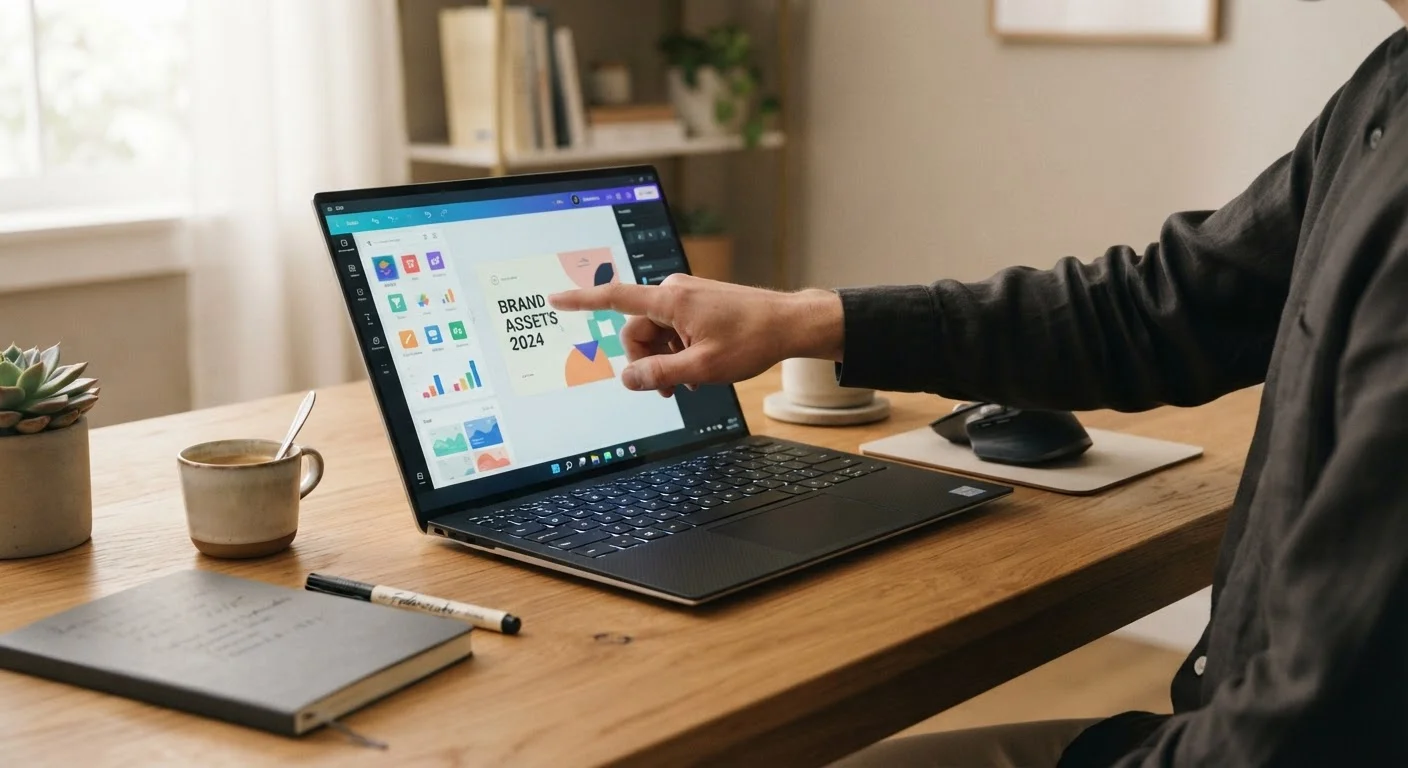
Being able to tap and annotate directly on a shared screen during meetings makes walkthroughs and document reviews feel more interactive and dynamic.
Faster navigation in some workflows
Reaching up to tap a button or scroll a page is sometimes faster than repositioning the cursor with a trackpad, particularly for scrolling-heavy tasks.
Higher purchase price than non-touch equivalents
Adding a touch layer typically increases a laptop's price, sometimes significantly. At the same price point, a non-touch model often delivers better overall performance.
Shorter battery life due to the digitizer layer
The touch-sensing hardware draws power continuously. Many users report a noticeable reduction in battery endurance compared to similar non-touch configurations.
Fingerprints and smudging are constant nuisances
Glossy touch displays attract fingerprints rapidly. Keeping the screen clean requires regular wiping, and smudges are especially visible in bright lighting conditions.
Most desktop software isn't designed for touch
Productivity apps like spreadsheets, design tools, and browsers are built around precise mouse input. Touch interactions on these interfaces often feel clumsy and imprecise.
Increased screen glare from glossy coatings
Touch displays commonly use glossy finishes that improve touch response but reflect ambient light strongly, making them harder to see in bright or outdoor environments.
Added weight compared to non-touch displays
The digitizer and glass overlay add a small but measurable amount of weight to the lid. Over a long day of carrying your laptop, this can become noticeable.
Our Verdict
Touchscreen laptops offer real convenience for the right user — particularly those who sketch, annotate, or frequently switch between typing and tapping. For most people doing standard office or school work, the touch layer adds cost and subtracts battery life without meaningfully changing the experience. It's a worthwhile feature if you'll actually use it, and an unnecessary expense if you won't.
Best for creative professionals, students who handwrite notes digitally, and anyone who regularly works in tablet-style situations like presenting or drawing.
What a Touchscreen Actually Adds to a Laptop
A touchscreen laptop works like any other laptop but lets you interact with the display directly using your fingers — or a stylus if the model supports one. In practice, this means tapping to open apps, pinching to zoom, scrolling with a swipe, or sketching directly on screen.
The appeal is obvious: it feels intuitive, especially if you already use a smartphone or tablet. But whether the touch layer adds genuine value to your workflow depends heavily on how you actually use a computer day to day.
If you're weighing whether a laptop or tablet might suit you better overall, our guide on choosing between a tablet and a laptop walks through that decision in detail.
Intuitive interaction for casual use
Tapping, scrolling, and pinching to zoom feel natural to anyone used to a smartphone. This lowers the learning curve for less tech-savvy users.
Stylus support enables precise creative work
Many touchscreen laptops support active styluses, making them useful for digital sketching, annotation, and handwritten notes in a way trackpads cannot match.
Doubles as a tablet in convertible models
2-in-1 and convertible designs let you fold the display flat or into tent mode, effectively turning the laptop into a tablet for reading or presenting.
Useful for presentations and collaborative review
Being able to tap and annotate directly on a shared screen during meetings makes walkthroughs and document reviews feel more interactive and dynamic.
Faster navigation in some workflows
Reaching up to tap a button or scroll a page is sometimes faster than repositioning the cursor with a trackpad, particularly for scrolling-heavy tasks.
The Real Downsides You Should Know Before Buying
The disadvantages of touchscreen laptops are consistent enough that they appear across nearly every category of device — budget, mid-range, and premium alike.
Higher purchase price than non-touch equivalents
Adding a touch layer typically increases a laptop's price, sometimes significantly. At the same price point, a non-touch model often delivers better overall performance.
Shorter battery life due to the digitizer layer
The touch-sensing hardware draws power continuously. Many users report a noticeable reduction in battery endurance compared to similar non-touch configurations.
Fingerprints and smudging are constant nuisances
Glossy touch displays attract fingerprints rapidly. Keeping the screen clean requires regular wiping, and smudges are especially visible in bright lighting conditions.
Most desktop software isn't designed for touch
Productivity apps like spreadsheets, design tools, and browsers are built around precise mouse input. Touch interactions on these interfaces often feel clumsy and imprecise.
Increased screen glare from glossy coatings
Touch displays commonly use glossy finishes that improve touch response but reflect ambient light strongly, making them harder to see in bright or outdoor environments.
Added weight compared to non-touch displays
The digitizer and glass overlay add a small but measurable amount of weight to the lid. Over a long day of carrying your laptop, this can become noticeable.
One issue worth calling out specifically is battery drain. The digitizer layer that enables touch detection draws power continuously, even when you're not touching the screen. In real-world testing across many laptops, touch-enabled models tend to deliver noticeably fewer hours per charge than equivalent non-touch versions. If battery life is a priority — especially for travel or long work sessions — this is a meaningful trade-off.
Software is another friction point. Windows was redesigned to support touch, but the majority of desktop applications still assume a mouse and keyboard. Buttons are small, menus are dense, and precision tasks — like selecting a cell in a spreadsheet — are frustrating to do by finger. The experience improves in tablet-mode apps, but most productivity work still defaults to traditional input.
Who Gets the Most Value From a Touch Display
The touchscreen feature earns its cost in a few specific situations:
- Digital note-taking: Students and professionals who prefer handwriting notes directly on screen — using a stylus — often find this genuinely useful. It replaces paper notebooks and keeps notes searchable.
- Creative and design work: Illustrators, graphic designers, and anyone who marks up documents or photos benefits from stylus precision that a trackpad can't replicate.
- Casual browsing and media: Scrolling through social media, reading articles, or watching content feels natural with touch, particularly in a reclined or couch-based setup.
- Presentations and demos: Being able to tap and annotate directly on screen during a presentation adds a natural, dynamic quality.
If none of those use cases sound like you, the touch display may sit unused for most of the laptop's life — while still costing you in price and battery. For a broader look at how different form factors match different work styles, see our framework for deciding between a laptop and a desktop.
Convertible vs. Standard Touchscreen Laptops
Not all touchscreen laptops are built the same. A standard touchscreen laptop has a fixed display and adds touch as an input option alongside the keyboard and trackpad. A convertible or 2-in-1 laptop goes further — the hinge allows the screen to fold fully back or detach, enabling a true tablet mode. If you want touch primarily for occasional tapping while typing, a standard touchscreen may be enough. If you want to use the laptop as a tablet regularly, a convertible design makes that experience significantly more comfortable.
Making the Decision: Questions Worth Asking Yourself
Before committing to a touchscreen model, a few honest questions can save you from paying for a feature you won't use:
- Do you currently use touch on your phone or tablet for tasks you'd want to replicate on a larger screen?
- Will you use a stylus for note-taking or drawing, or do you plan to use just your fingers?
- Is battery life critical for how and where you work?
- Is your budget tight enough that the price premium matters?
If your answers point toward regular, intentional touch use, the feature is likely worth it. If you're drawn to the idea of touch without a clear use case in mind, a non-touch model will almost certainly serve you just as well — and save you money in the process.
It's also worth noting that touchscreen brightness and screen coatings vary widely. Many touch displays use a glossy finish that improves touch accuracy but increases glare in bright environments — something to check if you work near windows or outdoors.