

Key Takeaways
Is Your Computer Worth Saving?
Before investing time or money, it's worth asking whether your machine is a good candidate for revival. A computer that's roughly five to eight years old and running slowly is often fixable. One that's ten-plus years old, runs a version of Windows that no longer receives security updates, or has a failing hard drive may be approaching the end of a practical lifespan.
Understanding why a computer slows down helps you target the right fix. Why computers slow down over time is covered in detail in a companion guide — reading it first helps you avoid chasing the wrong problem. Common culprits include insufficient RAM, a full or fragmented hard drive, runaway startup programs, and accumulated software clutter.
If replacement does become necessary, it's still worth exhausting these steps first — they can meaningfully improve day-to-day usability and buy you more time before that decision.
What you will need
Step-by-Step: Practical Ways to Revive a Slow PC
Audit and Trim Startup Programs
On Windows, open Task Manager (press Ctrl + Shift + Esc), click the Startup tab, and review what launches automatically when you boot. Disable anything you don't need running immediately — messaging apps, cloud sync tools, and manufacturer utilities are common offenders. On a Mac, go to System Settings > General > Login Items and remove unnecessary entries. This single step can cut boot times significantly.
Free Up Storage Space
A drive that's more than 85–90% full slows the entire system down. On Windows, use the built-in Disk Cleanup tool (search for it in the Start menu) to remove temporary files, old Windows update files, and items in the Recycle Bin. On a Mac, go to System Settings > General > Storage for a visual breakdown of what's consuming space. Move large files — videos, photo libraries — to an external drive or cloud storage if you don't access them regularly.
Run a Malware Scan
Malicious software running silently in the background is a common but overlooked cause of sluggish performance. Windows includes Windows Security (formerly Windows Defender) at no extra cost — open it from the Start menu and run a full scan. Mac users can use reputable third-party security software. If a scan finds and removes active threats, you may see an immediate improvement.
Update the Operating System and Drivers
Outdated operating system versions and device drivers can cause performance issues and security vulnerabilities. On Windows, go to Settings > Windows Update and install any pending updates. On a Mac, check System Settings > General > Software Update. Also update your graphics drivers — especially if you experience lag or display issues — by visiting your GPU manufacturer's support page (usually Intel, AMD, or NVIDIA depending on your hardware).
Add More RAM If Your System Supports It
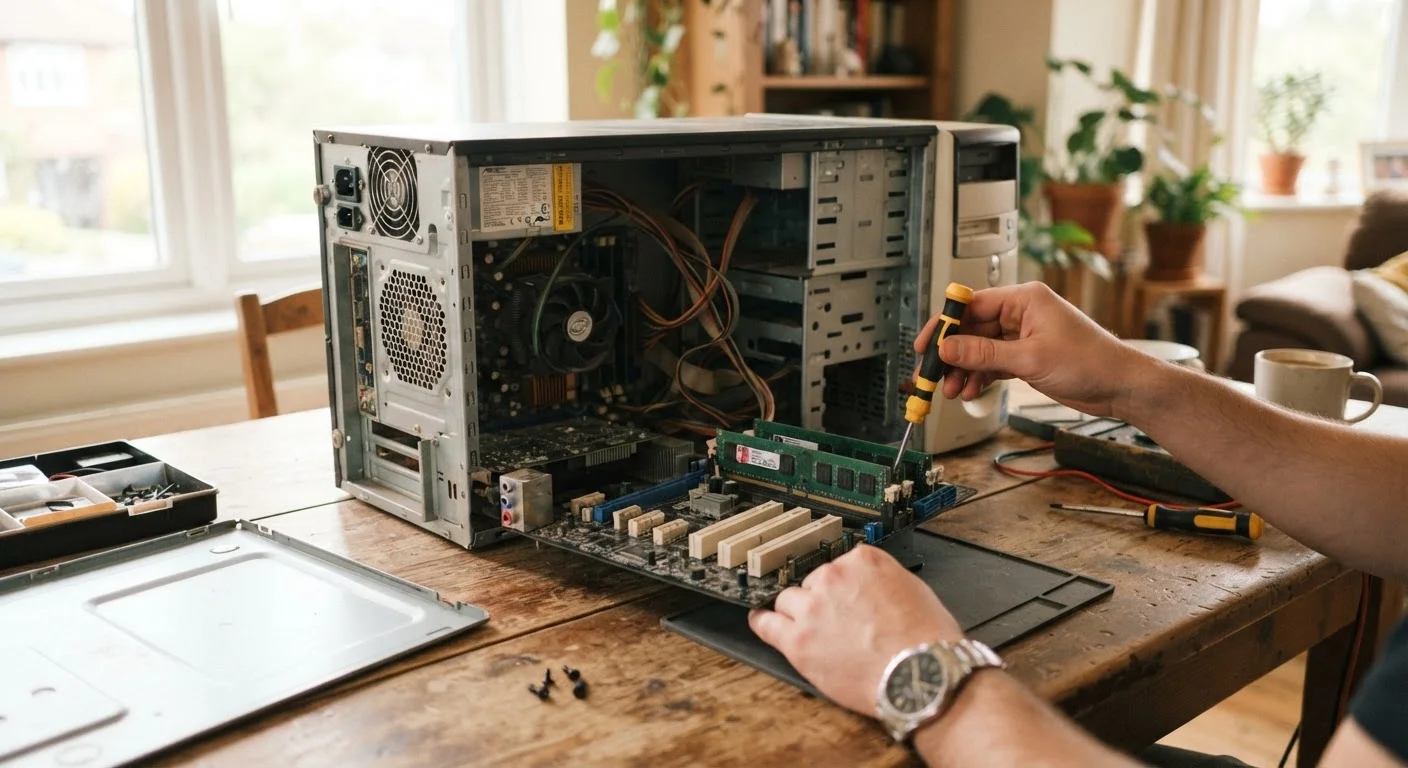
RAM (random-access memory) is the workspace your computer uses to run programs. If your machine has 4 GB or less, upgrading to 8 GB can make a substantial difference for everyday tasks like web browsing and document editing. First, check whether your RAM is upgradeable — many laptops have soldered RAM that cannot be replaced, while most desktops can be expanded. Use a free tool like CPU-Z (Windows) or check System Information to see what you currently have and what your motherboard supports.
Replace a Traditional Hard Drive with an SSD
If your computer still uses a spinning hard disk drive (HDD), switching to a solid-state drive (SSD) is often the single most dramatic upgrade you can make. SSDs have no moving parts, load programs far faster, and make the entire system feel more responsive. Before purchasing, confirm that your laptop or desktop uses a 2.5-inch SATA slot (most common in older machines) or an M.2 slot, and choose the matching SSD form factor. Cloning software can copy your existing drive to the new SSD without reinstalling everything from scratch.
When a Fresh Start Makes More Sense Than Incremental Fixes
If you've worked through the steps above and the machine still struggles, a clean reinstall of your operating system is worth considering before replacing the computer entirely. A clean install wipes accumulated software baggage and essentially returns the system to factory-fresh condition. Back up your files first — this process erases everything on the drive.
If the hardware itself is failing — the hard drive throws errors, the machine overheats constantly, or the CPU is simply too old to run current software — no software fix will fully solve the problem. At that point, weigh the cost of a hardware repair against the cost of a used or refurbished replacement. Our guide on evaluating used and refurbished computers walks through what to check before committing to a replacement. And if you do move on, migrating your files and handling your old machine responsibly is the logical next step.
The same principle of extending useful life rather than replacing prematurely applies beyond computers — habits that extend your car's life follows a similar logic. Thoughtful maintenance almost always costs less than buying new. These decisions also connect directly to broader saving money strategies worth keeping in mind.
Small Habits Extend Performance Over Time
Restart your computer at least once a week rather than relying on sleep mode — this clears memory and applies pending updates. Keeping the machine physically clean, with vents unobstructed, also prevents thermal throttling, where the processor slows itself down to avoid overheating. These habits cost nothing and reduce how quickly performance degrades.