

Key Takeaways
Laptop Specifications
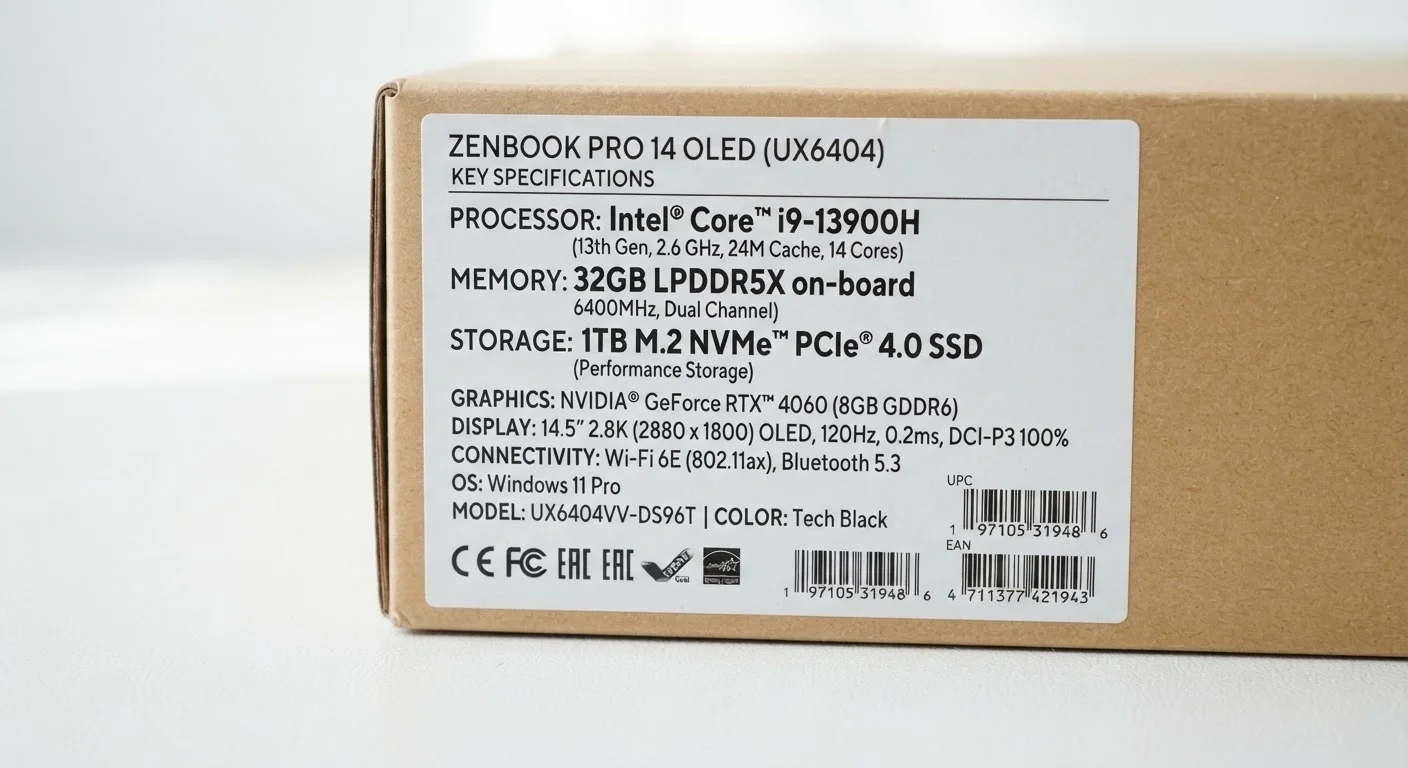
Laptop specifications are the technical measurements printed on a laptop's box or listing that describe its internal hardware. The three most important specs for most buyers are RAM (how much the laptop can juggle at once), storage (how much you can save on it), and the processor (how fast it can think). Understanding what these numbers actually mean helps you choose a laptop that fits your real daily needs rather than just sounding impressive.
Specs are set at manufacturing time; some can be upgraded later (storage on many models, occasionally RAM), but processors are soldered in and cannot be changed.
Why Laptop Specs Feel So Confusing
Standing in front of a laptop display — or scrolling through an online listing — you are met with a wall of numbers: "16 GB RAM, 512 GB SSD, Intel Core i5." Each phrase sounds important but rarely comes with a plain explanation of what it actually affects in your daily life. Manufacturers assume buyers already understand the vocabulary, which leaves many people guessing or defaulting to whichever number sounds biggest.
The good news is that you only need to understand three categories to evaluate almost any laptop: RAM, storage, and the processor. Each one controls a different aspect of how the laptop behaves, and none of them needs to be intimidating once you know what question it answers. For a fuller walkthrough of the buying process, see our complete beginner's guide to buying a computer.
RAM: The Laptop's Short-Term Working Space
RAM stands for Random Access Memory. Think of it as your desk surface — the bigger it is, the more work you can spread out at once without having to constantly shuffle papers in and out of a filing cabinet. When you have a dozen browser tabs open, a spreadsheet running, and a music app playing simultaneously, all of that active data lives in RAM.
When RAM runs low, the laptop slows noticeably — apps freeze, tabs reload when you switch back to them, and everything feels sluggish. This is why RAM directly affects perceived speed during everyday multitasking, even though it has nothing to do with how many files you can save.
8 GB
RAM commonly recommended for everyday laptop use
Industry guidance consistently places 8 GB as the practical baseline for general-purpose computing tasks like browsing, email, and streaming.
~3–5×
Speed advantage of SSD over HDD for typical reads
Consumer storage benchmarks generally show SSDs outperforming traditional spinning hard drives by a factor of three to five times on common read/write tasks, with NVMe SSDs often exceeding this margin.
256 GB
Minimum SSD storage on most current entry-level laptops
As of recent product generations, 256 GB SSD has become the standard entry point for new consumer laptops, replacing smaller HDDs that were common in prior years.
A common point of confusion is treating RAM and storage as the same thing. They are not — RAM is cleared every time you shut down, while storage is permanent. Our article on common myths about computer memory goes deeper on this mix-up and why it matters.
Storage: Where Your Files Actually Live
Storage capacity — measured in gigabytes (GB) or terabytes (TB) — determines how many files, programs, photos, and videos the laptop can hold permanently. Unlike RAM, data in storage persists after the laptop is powered off.
The type of storage matters just as much as the amount. Most current laptops use an SSD (Solid State Drive), which reads and writes data using flash memory chips — the same technology in a USB thumb drive, only much faster. An older technology, the HDD (Hard Disk Drive), uses spinning magnetic platters and is considerably slower, though it offers more capacity per dollar. Because SSDs have no moving parts, they also tend to be more resistant to damage from bumps and drops.
In practical terms, an SSD means your laptop starts up in seconds rather than minutes, and apps open nearly instantly. For most people, 256 GB is a workable minimum if files are stored partly in cloud services, while 512 GB provides more breathing room for local photo libraries and downloaded content.
Processors: The Brain Behind the Speed
The processor — also called the CPU — is the chip that executes instructions. Every click, keystroke, and calculation passes through it. Processor specs are where marketing language gets especially dense, because chip makers use alphanumeric naming systems that don't always follow intuitive logic.
Two concepts cut through most of the noise:
- Generation: Chip families are released in yearly or bi-yearly generations. A newer generation generally delivers better performance and battery efficiency than an older generation, even at the same model tier. Pay attention to the generation number in the chip name when comparing options.
- Performance tier: Within a chip family, there are usually entry-level, mid-range, and high-performance variants. Chip makers often use suffixes or sub-brands to signal this. Entry-level chips handle everyday tasks well; high-performance chips are designed for demanding work like video editing or software development.
Core count — the number of independent processing units inside the chip — matters most for tasks that can run in parallel, like rendering video. For typical office, communication, and streaming tasks, a current-generation mid-range processor is rarely the bottleneck.
If you're also comparing laptop ports and connectivity alongside these specs, our guide to laptop ports explains what each connector is for in plain language.
Putting the Specs Together Before You Decide
No single spec tells the whole story. A laptop with a fast processor but only 8 GB of RAM can still feel sluggish under heavy multitasking. One with generous RAM but a slow HDD will feel dated the moment you turn it on. The goal is balance — matching all three categories to how you actually plan to use the machine.
A useful mental exercise: write down the three or four things you will do on the laptop most often. Browsing and email require the least hardware. Photo editing and light video work demand more RAM and a capable mid-range processor. Gaming and professional video production need the highest tier across the board. Your real use case, not the biggest number on the box, should guide the decision.
Curious how this compares to decoding phone specs? The logic is similar but the naming conventions differ — see our guide to understanding phone spec listings for a side-by-side perspective.