

| USB-A max data speed (USB 3.2) | Up to 20 Gbps (USB Implementers Forum specification) |
| USB-C / Thunderbolt 4 max speed | Up to 40 Gbps (Intel Thunderbolt 4 specification) |
| HDMI 2.0 max resolution | 4K at 60 Hz (HDMI Forum) |
| Standard SD card form factor | 32 mm × 24 mm (SD Association) |
| USB-C power delivery maximum | Up to 240 W (USB PD 3.1) (USB Implementers Forum) |
| Thunderbolt external monitor support | Up to two 4K displays simultaneously (Intel Thunderbolt 4 specification) |
The Ports You See Most Often
Flip a laptop over or scan its edges and you will usually find a handful of ports, each shaped differently on purpose. That shape tells you what it is for. Here is what you are actually looking at.
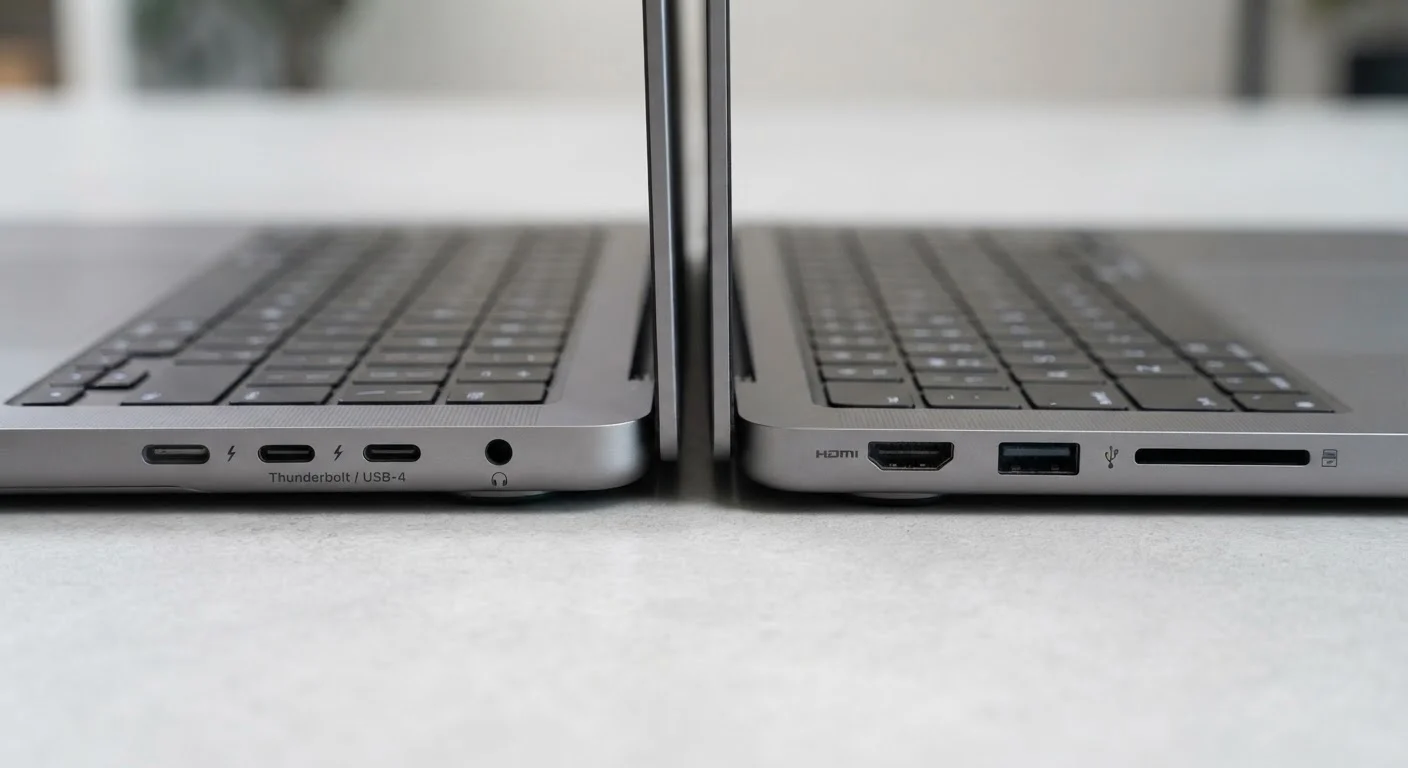
USB-A is the wide, flat rectangular slot. It accepts the same plugs found on most flash drives, wired mice, keyboards, and older phone chargers. If something has a USB cable with a rectangular end, this is where it goes.
USB-C is the small oval port appearing on almost every laptop sold today. Because one USB-C port can carry power, data, and video simultaneously, manufacturers sometimes use it to replace several older ports. Not all USB-C ports are created equal, though — some only charge, while others can push video to a monitor or transfer data at high speed. Check your laptop's documentation to know which role each USB-C port plays.
HDMI looks like a slightly trapezoid-shaped slot and is your go-to connection for plugging into a TV or external monitor. It carries both picture and sound in one cable. For a deeper look at HDMI differences, see how HDMI versions differ.
USB-A
The rectangular USB port most people recognize from flash drives, phone chargers, and mice. It has been the standard connector for over two decades and is still common on many laptops today.
USB-C
A small, oval-shaped connector that can carry power, data, video, and audio over a single cable. It is reversible — you cannot plug it in upside down — and is increasingly replacing older connector types.
Thunderbolt
A high-speed port that looks identical to USB-C but carries more bandwidth. A Thunderbolt port can connect external monitors, high-speed drives, and docking stations at speeds USB-C alone cannot match.
HDMI
A port for sending audio and video to an external screen, such as a TV or monitor. It is the most common way to connect a laptop to a secondary display using a single cable.
SD Card Slot
A flat slot that accepts SD (Secure Digital) memory cards, commonly used in digital cameras and some drones. Not all laptops include one, but it saves having to carry a card reader.
DisplayPort
A video output connector similar to HDMI but more common on desktop monitors and professional equipment. Some USB-C ports support DisplayPort signal through an adapter.
Ethernet Port (RJ-45)
A wide, rectangular port for plugging in a physical network cable. It provides a wired internet connection that is generally faster and more stable than Wi-Fi, though many thin laptops omit it.
Docking Station
An external hub that connects to one laptop port — usually Thunderbolt or USB-C — and adds multiple ports at once, such as HDMI, USB-A, Ethernet, and SD card slots, in a single device.
Thunderbolt, SD Cards, and Less Common Ports
Thunderbolt ports look exactly like USB-C, which causes constant confusion. The difference is speed and capability. A Thunderbolt port — marked by a small lightning bolt icon — supports external graphics cards, multiple 4K monitors at once, and ultra-fast storage drives. If your port has that icon, treat it as a premium connection.
SD card slots are the flat, rectangular openings usually found on the side of a laptop. They accept the same memory cards that go into most digital cameras. If you regularly move photos off a camera, a built-in SD slot saves you from carrying a separate card reader.
Headphone jack — the small circular port — accepts standard 3.5 mm audio plugs for wired headphones or speakers. Many thin laptops have dropped it, which is worth checking before you buy if you rely on wired audio.
Ethernet (RJ-45) is the wide, chunky port for a network cable. Because it requires physical depth, many slim laptops omit it entirely. If you work in a setting where wired internet is more reliable than Wi-Fi, an Ethernet port (or a USB-to-Ethernet adapter) can make a real difference.
When comparing laptop form factors, it is worth thinking through which ports matter most for how you actually work. Our guide to choosing between a tablet and a laptop covers port differences as part of that decision. And once you understand ports, reading the rest of the spec sheet becomes easier — see what laptop specs actually mean for the next step.
| USB-A max data speed (USB 3.2) | Up to 20 Gbps (USB Implementers Forum specification) |
| USB-C / Thunderbolt 4 max speed | Up to 40 Gbps (Intel Thunderbolt 4 specification) |
| HDMI 2.0 max resolution | 4K at 60 Hz (HDMI Forum) |
| Standard SD card form factor | 32 mm × 24 mm (SD Association) |
| USB-C power delivery maximum | Up to 240 W (USB PD 3.1) (USB Implementers Forum) |
| Thunderbolt external monitor support | Up to two 4K displays simultaneously (Intel Thunderbolt 4 specification) |
When You Do Not Have Enough Ports
Running out of ports is one of the most common frustrations laptop owners face, especially on ultra-thin models that may offer only two USB-C ports and nothing else. The practical solution is a hub or docking station. A hub plugs into one of your USB-C or Thunderbolt ports and expands it into several — typically adding USB-A slots, HDMI, an SD card reader, and sometimes Ethernet, all in a device about the size of a deck of cards.
A few things to keep in mind when adding a hub: not all hubs support video output, and some slower hubs may limit data transfer speeds even if the port they connect to is fast. Look for one that explicitly lists the features you need rather than assuming every hub does everything.
If you connect to multiple monitors, a full docking station connected via Thunderbolt will give you the most stable and capable setup. If you just need an extra USB-A slot and an HDMI port occasionally, a compact USB-C hub will do the job without the bulk or expense of a full dock.
This article is for general informational purposes. Specifications and port availability vary by laptop model. Always verify your device's documentation for exact port capabilities before purchasing accessories.