

Key Takeaways
The Overlooked Variable in Your Wi-Fi Setup
Most people blame their router when Wi-Fi feels slow or unreliable. The device gets swapped out, a newer model arrives, and things might improve — at least briefly. But in many homes, the real culprit isn't the hardware. It's where the router is sitting.
Wi-Fi signals travel in all directions from the router, weakening as they pass through walls, floors, furniture, and appliances. If your router is tucked in a corner closet, crammed behind a TV cabinet, or sitting on the floor next to the modem, the physics work against you — no matter how capable the hardware is.
Understanding why placement matters so much can save you the cost and hassle of an upgrade you don't actually need. And if you do eventually need better coverage, you'll make a smarter decision about what to get next. See our comparison of mesh and traditional router setups for context on what those options actually change.
Best Practices for Router Placement
These principles apply to the vast majority of home layouts. Some adjustments may be needed for multi-story homes or unusually large spaces, but the fundamentals remain consistent.
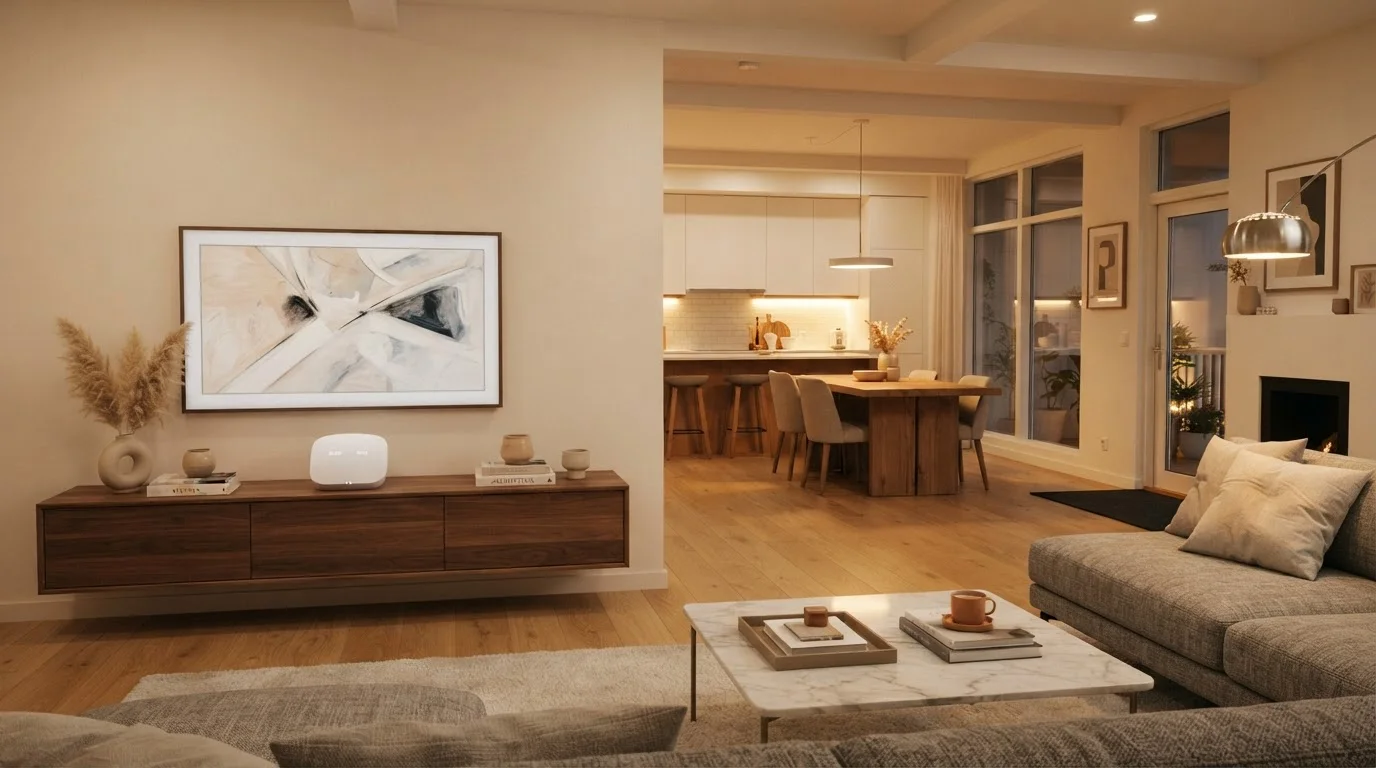
Place your router in the most central location your home allows.
Wi-Fi signal radiates outward from the router in all directions. A central position minimizes the maximum distance signal needs to travel to reach any room, reducing dead zones at the edges of your home.
Elevate the router off the floor — a shelf or tabletop works well.
Routers broadcast signal both horizontally and slightly downward. Placing them on the floor wastes much of that coverage into the ground and introduces more obstructions at device level.
Keep the router out of enclosed spaces like closets, cabinets, and entertainment centers.
Enclosures act like signal traps. Wood, metal, and even glass shelving attenuate Wi-Fi, and heat buildup inside enclosed spaces can also degrade router performance over time.
Minimize the number of walls and floors the signal must pass through to reach your devices.
Every wall, floor, or ceiling the signal crosses weakens it. Denser materials — concrete, brick, tile — cause more signal loss than drywall. Routing signal through fewer barriers preserves more usable speed.
Distance your router from microwaves, cordless phones, and baby monitors.
Many of these devices operate on the 2.4 GHz frequency band — the same band used by Wi-Fi. When they run, they can cause interference that slows or drops connections for nearby devices.
Quick Moves You Can Make Today
You don't need tools or technical knowledge to start improving your Wi-Fi. These are practical first steps that take only a few minutes and often produce noticeable results.
If your home has older construction or thick plaster walls, interference from building materials may be a bigger factor than placement alone. For a deeper look at how older homes affect wireless performance, see what wiring and Wi-Fi limitations mean for older homes.
When Placement Alone Isn't Enough
Even a perfectly placed router has limits. Very large homes, multi-story layouts, or homes with dense concrete or brick walls may still have dead zones after repositioning. At that point, the question isn't where to put your router — it's whether a single router is the right tool at all.
Before spending on new hardware, confirm that placement has been genuinely optimized. Walk your home with a connected device and note where signal drops off. If the weak zones are far from where a central placement is physically possible, that's a real signal coverage problem — not just a placement issue.
Smart home devices add their own layer of complexity here. Different devices use different wireless protocols, and not all of them connect through your Wi-Fi router. Understanding those protocols can help you figure out which connection problems are actually Wi-Fi related. Similarly, if you're weighing wired versus wireless for any permanent installation, this breakdown of wired vs. wireless trade-offs is worth reviewing before you commit.