

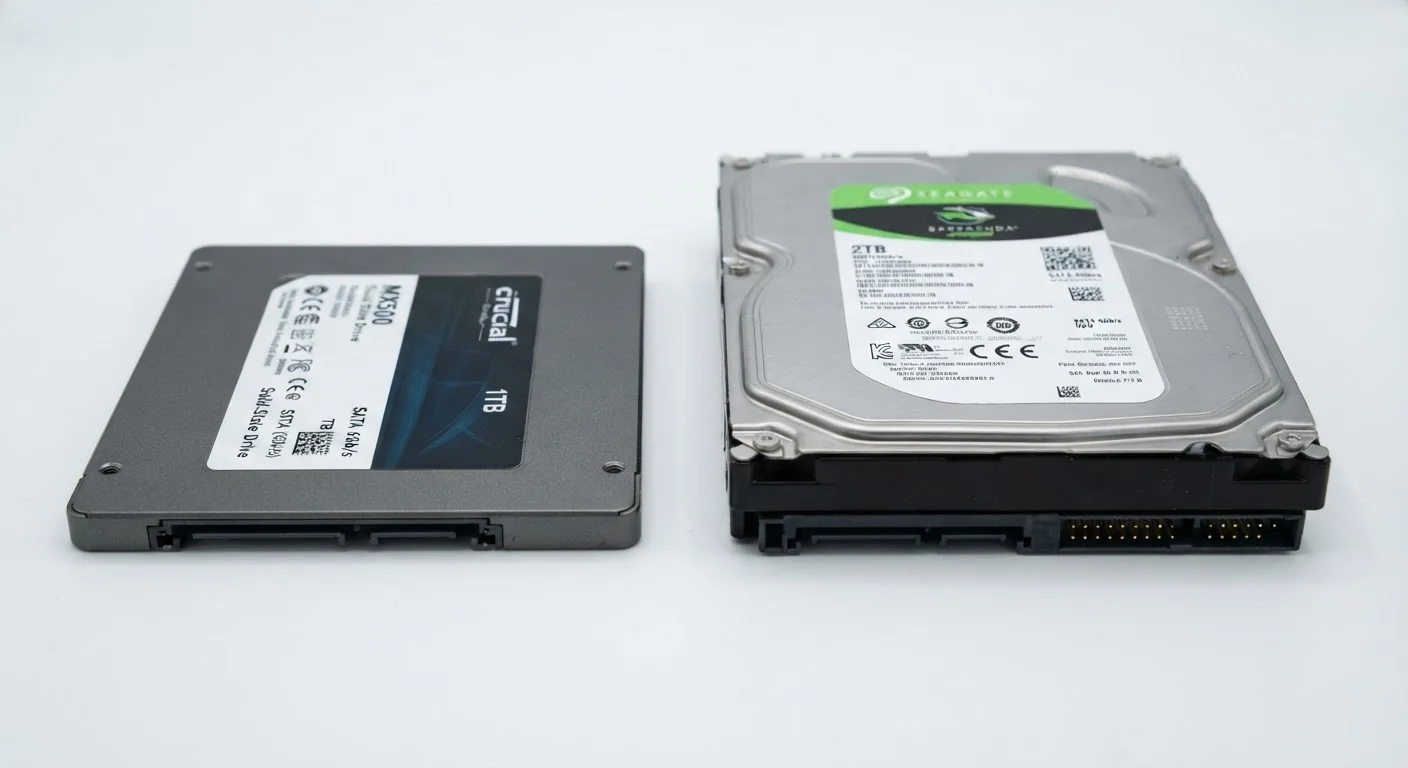
Key Takeaways
Option A
SSD (Solid-State Drive)
The fast, silent, modern standard.
Best for: Everyday users who want a computer that boots and responds quickly without moving parts to worry about.
Option B
HDD (Hard Disk Drive)
The high-capacity, budget-friendly workhorse.
Best for: Users who need to store large amounts of data — photos, video archives, backups — at a lower cost per gigabyte.
If your computer feels sluggish and you want a noticeable speed boost
SSD (Solid-State Drive)
Replacing an old HDD with an SSD is one of the most impactful upgrades you can make. Boot times, app launches, and file transfers all improve dramatically.
If you need to store terabytes of photos, videos, or backups affordably
HDD (Hard Disk Drive)
HDDs remain the cost-effective option for bulk storage. For archives that sit on a shelf most of the time, raw speed matters far less than capacity per dollar.
If you're building or upgrading a desktop and want the best of both worlds
SSD (Solid-State Drive)
Use an SSD as your primary drive for the operating system and apps, and add a secondary HDD for large files. This combination balances speed and storage affordably.
If you're upgrading an older laptop on a tight budget
SSD (Solid-State Drive)
Most modern laptops physically fit only one drive, and an SSD's lower power draw also improves battery life — a meaningful bonus for portable use.
How Each Drive Actually Works
The core difference between an SSD and an HDD comes down to how they store data physically. An HDD (Hard Disk Drive) contains spinning magnetic platters and a mechanical arm that reads and writes data — not unlike a record player. Every time you open a file, that arm physically moves to find the data on the platter. This mechanical process introduces a delay called latency, and it means HDDs have real moving parts that can wear out or be damaged by drops and vibration.
An SSD (Solid-State Drive), by contrast, stores data on flash memory chips — the same underlying technology used in USB thumb drives, just much faster and more sophisticated. Because there are no moving parts, data can be accessed almost instantly from any location on the drive. The result is a drive that boots your operating system faster, opens applications more quickly, and transfers files at a dramatically higher speed.
Understanding this physical difference helps explain almost every trade-off you'll encounter. For a deeper look at how storage specs appear on product listings, see our guide on what laptop specs actually mean.
Speed, Capacity, and Cost: The Three-Way Trade-Off
When choosing between an SSD and an HDD, three factors dominate the decision: speed, how much storage you get, and what you pay for it.
| Criterion | SSD | HDD |
|---|---|---|
| Read/write speed | Very fast (flash memory) | Slower (mechanical arm) |
| Boot time | Seconds | 30–90+ seconds |
| Cost per gigabyte | Higher | Lower |
| Typical max capacity (consumer) | Up to 4 TB common | Up to 10+ TB common |
| Moving parts | None | Yes (platters and arm) |
| Noise | Silent | Audible spinning/clicking |
| Shock/vibration resistance | High | Lower |
| Power consumption | Lower (better battery life) | Higher |
| Best role | Primary/OS drive | Bulk storage/backup |
Speed: SSDs are substantially faster than HDDs for everyday tasks. A computer running from an SSD typically boots in seconds; the same machine with an HDD may take a minute or more. This gap is most noticeable when launching programs, searching for files, or working with many files at once.
Capacity per dollar: HDDs still offer more gigabytes per dollar. As of general market trends, a 4 TB HDD often costs less than a 1 TB SSD of similar quality. If you're archiving years of family videos or raw photo files, that gap is real and worth considering.
Power and durability: SSDs draw less power, which extends battery life in laptops. They also handle drops and jostling better because there's nothing to knock out of alignment. HDDs are more vulnerable in portable devices specifically because of those spinning platters.
Practical Scenarios: Matching the Drive to the Job
The right choice depends heavily on what you actually do with your computer.
If your primary machine is a laptop used for browsing, documents, video calls, and streaming, an SSD almost always makes more sense. The speed, battery efficiency, and durability benefits align directly with how laptops are used — carried around, opened quickly, and expected to respond immediately.
If you're working with a desktop that stays at your desk, the calculus is more flexible. Many desktop cases can hold more than one drive, opening the door to a practical two-drive setup: an SSD as the primary drive (where the operating system and applications live) paired with a larger HDD for photos, videos, project archives, and backups. This approach gives you the speed where it matters and the capacity where you need it.
If you're simply looking to add external backup storage, an external HDD remains a widely used, cost-effective option — provided you keep it in a safe location and handle it carefully.
~3–5×
Typical SSD speed advantage over HDD
Sequential read speeds for mainstream SATA SSDs commonly range from 500–550 MB/s versus 100–160 MB/s for typical 7200 RPM HDDs.
~50%
Reduction in laptop power draw from SSD
SSDs generally consume 2–4 watts under load compared to 6–10 watts for a comparable HDD, contributing to measurable battery life improvements in portable devices.
It's also worth noting that SSDs aren't permanent. Like HDDs, they have a finite lifespan, though failure modes differ. HDDs often give audible or performance warnings before failing; SSDs can fail more abruptly. Regular backups matter regardless of which drive type you use. For common misconceptions about computer memory and storage, see our article on things people get wrong about computer memory.
Making the Call for Your Computer
If you're deciding whether to upgrade an existing machine or spec out a new one, start with your primary frustration. Is the computer slow to start up and respond? An SSD addresses that directly. Do you keep running out of space for large files? An HDD or a combination setup may serve you better.
For most people buying or upgrading a laptop today, an SSD is the more practical choice. If you're building or upgrading a desktop and storage volume is a real concern, consider pairing drives. And if budget is genuinely tight and you mostly need a place to archive large files that you access infrequently, an HDD can still do that job well.
Storage decisions don't exist in isolation — they connect to the broader question of which device fits your life. Our guide on choosing between a laptop and desktop walks through those trade-offs in detail. And if you're curious how storage concepts carry over to phones, our smartphone storage explainer covers RAM, internal storage, and the cloud in plain English.