

Key Takeaways
Start here
What's Actually Inside Your Smartphone
Next
Setting Up Your Account and the Home Screen
Then
Connecting to Wi-Fi and Mobile Data
Getting comfortable
Apps: What They Are and How to Manage Them
Before you explore
Basic Privacy and Safety Habits
What's Actually Inside Your Smartphone
A smartphone is essentially a small computer that also makes calls. Under the glass, a few key components work together: a processor (the brain that runs everything), RAM (short-term memory that keeps apps running smoothly), and internal storage (where your photos, apps, and files live permanently). You don't need to memorize these terms, but knowing they exist helps when you hear things like "my phone feels slow" — that's usually the processor or RAM being stretched thin.
Your phone runs on an operating system — either iOS (on Apple iPhones) or Android (on phones from many other manufacturers). Think of the operating system as the foundation everything else is built on. The good news: both systems use similar logic. You tap icons to open things, swipe to navigate, and hold your finger down to get extra options.
Operating System
The core software that runs your phone and controls how everything else works. iPhones use iOS; most other smartphones use Android.
App
A program you install on your phone to do a specific task, like navigate, send messages, or check the weather.
RAM
Short-term memory your phone uses to keep apps running. More RAM generally means your phone can handle more things at once without slowing down.
Internal Storage
The permanent space on your phone where photos, apps, and files are saved — similar to a filing cabinet that stays full until you delete things.
Permissions
Requests from apps to access parts of your phone, like your camera or location. You choose whether to allow or deny each one.
Mobile Data
Internet access provided by your phone carrier that works anywhere there's a cell signal, typically with a monthly usage limit.
For a plain-English breakdown of storage specs you'll encounter on phone listings, our smartphone storage guide is a useful companion read.
Setting Up Your Account and the Home Screen
The first time you power on a smartphone, it will walk you through a setup wizard. The most important step is creating or signing into an account — an Apple ID for iPhones or a Google account for Android phones. This account is free and serves as the hub for your apps, backups, and purchases. Write down your password and store it somewhere safe.
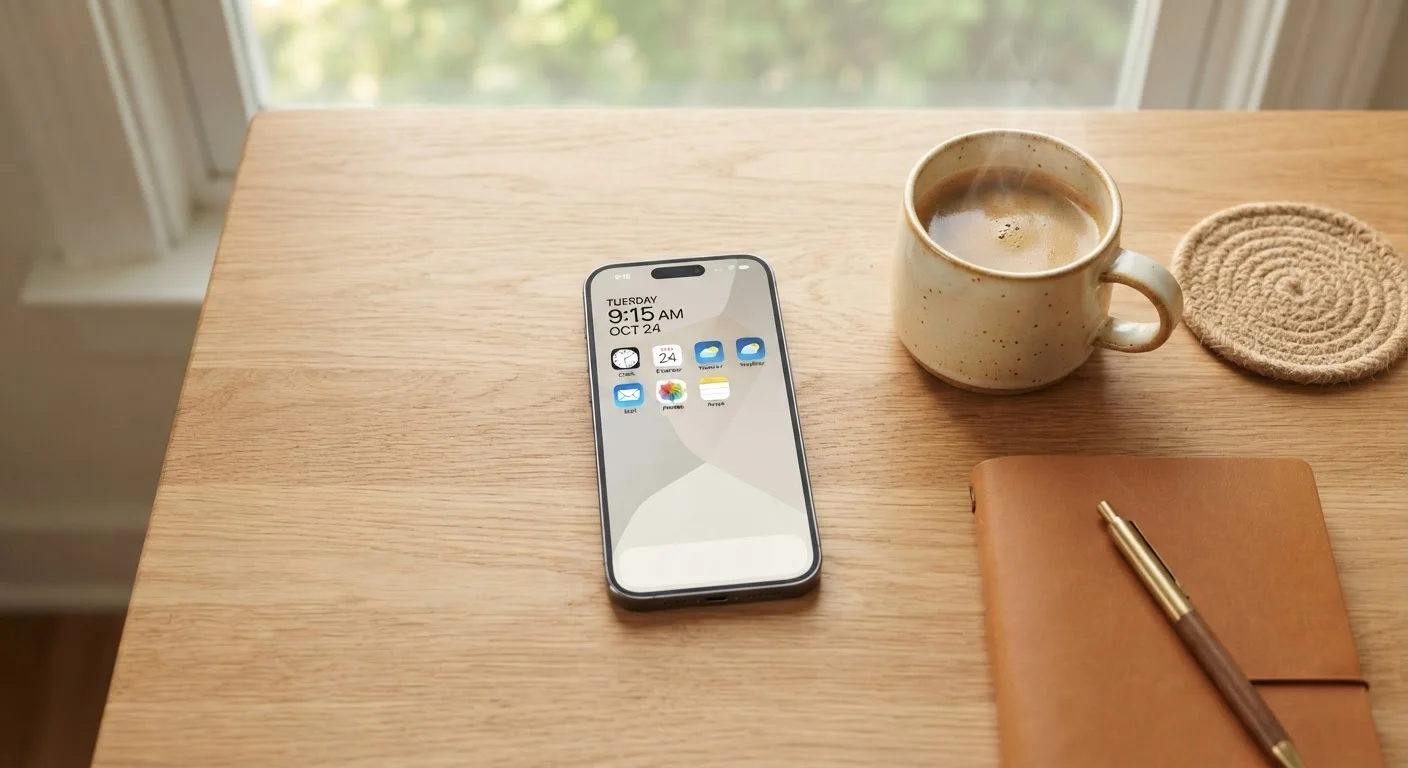
Once setup is complete, you'll land on the home screen — a grid of app icons. Pre-installed apps (like a phone dialer, camera, and browser) are already there. You can move icons around by holding one until it wiggles, then dragging it. A notification bar runs along the top of the screen; pulling it down shows alerts, messages, and quick settings like Wi-Fi and brightness.
If you ever switch phones down the road, your account makes the transition much smoother. Our article on moving everything to a new phone covers exactly how that works.
Connecting to Wi-Fi and Mobile Data
Your phone can access the internet two ways. Wi-Fi connects to a wireless network — at home, in a coffee shop, or at a library — and generally doesn't cost extra per use. Mobile data (sometimes called cellular data) comes from your phone carrier and lets you go online anywhere with a signal, but it counts against your monthly data allowance.
To connect to Wi-Fi: open Settings, tap Wi-Fi, and choose your network from the list. You'll enter the network password once, and your phone remembers it automatically. When you're away from saved networks, your phone switches to mobile data on its own — no action needed.
A practical tip: download large files (like app updates or videos) over Wi-Fi rather than mobile data to avoid using up your plan. Most phones let you set this preference in Settings under your carrier or data options.
Apps: What They Are and How to Manage Them
Apps are programs designed for specific tasks — navigation, messaging, banking, weather, and thousands more. They live in an app store: the App Store on iPhones, and Google Play on Android phones. Many apps are free; some cost money or offer optional paid upgrades called in-app purchases.
To install an app, open the app store, search for what you want, and tap the install or download button. To remove an app you no longer need, hold its icon on the home screen and look for a Delete or Remove option. Uninstalling apps you don't use frees up storage and keeps your phone less cluttered.
When you install a new app, it may ask for permissions — access to your camera, location, contacts, or microphone. Only grant permissions that make sense for what the app does. A flashlight app has no good reason to access your contacts, for example. You can review and change permissions anytime in Settings > Apps (Android) or Settings > Privacy (iPhone).
Curious about what your phone can already do without installing anything new? Our guide on built-in smartphone features is worth a look once you're comfortable with the basics.
Basic Privacy and Safety Habits
Two habits cover the majority of smartphone security risks for new users. First, set a screen lock. Go to Settings, find Security or Face ID & Passcode, and choose a PIN, password, or biometric option like fingerprint or face recognition. This prevents anyone who picks up your phone from accessing your personal information.
Second, be skeptical of unexpected messages. Scammers often send texts or emails pretending to be your bank, a delivery service, or even Apple or Google, asking you to tap a link and enter your password. Legitimate companies almost never ask for your password this way. When in doubt, go directly to the company's official website or app instead of tapping a link.
Set Up Automatic Backups Early
Both iOS and Android can back up your photos and data automatically to the cloud — Apple iCloud and Google Photos, respectively. Turn this on in Settings as soon as possible. If your phone is ever lost, damaged, or replaced, your photos and contacts will be safe and easy to restore.
When you're ready to go deeper, our article on mobile security settings covers the specific settings in your phone that protect your data and accounts — a natural next step once you've found your footing.